
How to Make Pinterest Pins for Shopee Affiliate With PhotoRoom
Running Shopee Affiliate and need more eyes on your product links? Pinterest can bring in that traffic, and you do not need to design every Pin from scratch. PhotoRoom handles the visual part, and this share walks through the whole flow.
You get a Pin-ready product image plus the few details that decide whether anyone actually finds it.
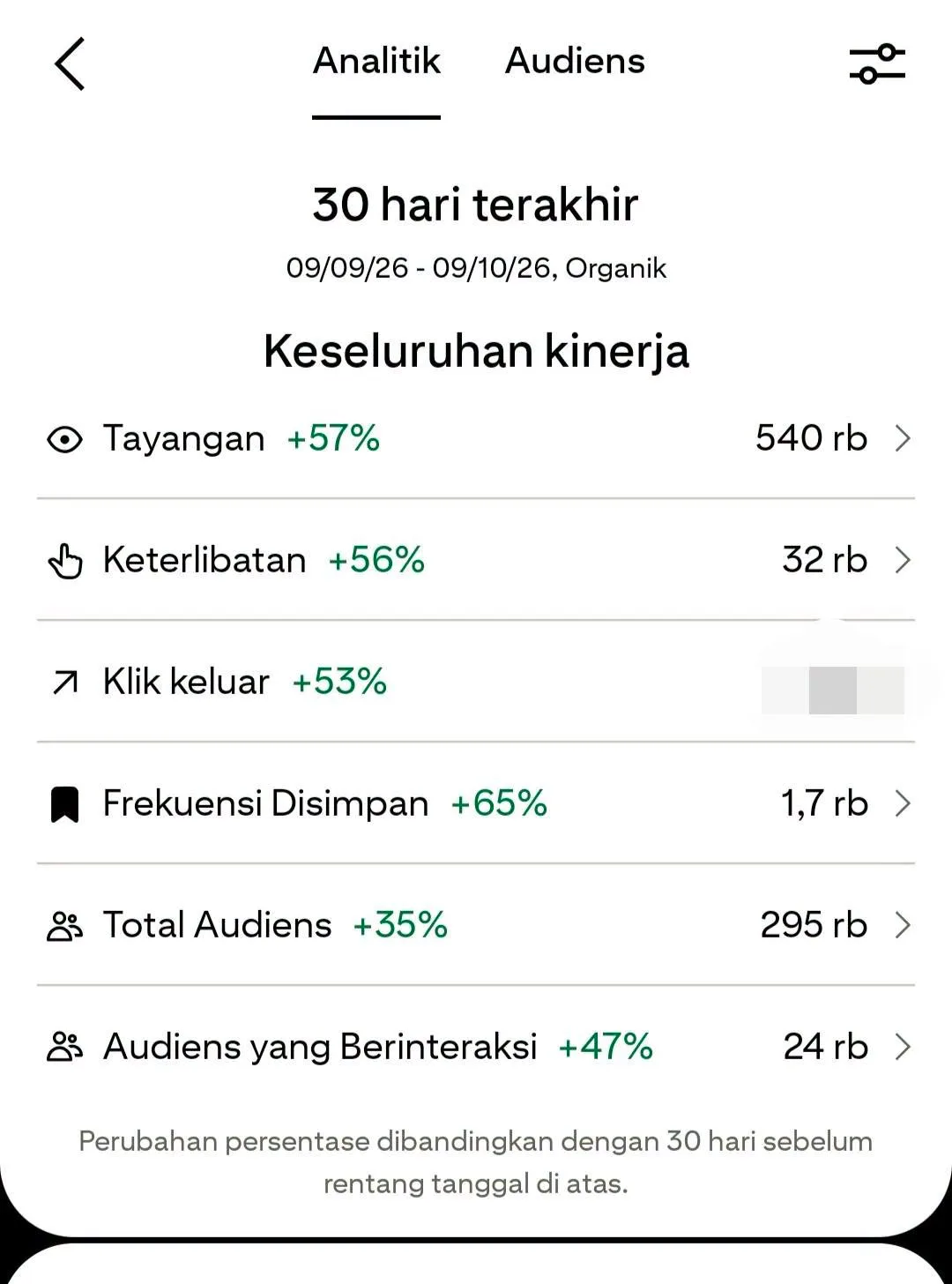
Tutorial
- Open PhotoRoom.
- Pick the product photo you want to promote.
- Use the remove background feature, or choose a template that fits the product.
- Tidy up how the product looks and pick a design that suits it. Choose the Pinterest Pin format under Esensial Sosial so the size matches what Pinterest expects.
- Save the result and get it ready to upload to Pinterest.
- Write a title using keywords that match the product.
- Write a description that explains what the product does for the buyer.
- Add the product link that goes with the Pin.
- Save the Pin to a Pinterest board that fits the product.
- Check impressions, clicks, and saves every so often.
Wrapping Up
A good-looking visual is only the first step. The title, the keywords, and how well the product fits the board are what give a Pin a chance of being found, so do not stop once the design is saved. Set up one Pin this way and see what the numbers tell you.
Does this still work?
Nobody's checked yet
Sign in to tell everyone how it went.
Continue with GoogleBe the first — one tap saves the next person an hour.
It takes 3 reports in 30 days to set the status.
More shares you might like
 News44 AI Agents Ran a Hacking Campaign Against Japan20h22 views
 ToolsHow to Claim Free May.id Domains for a Year1d31 views
 AIHow to Get 300 Million Free GLM-5.3-Flash Tokens Daily2d56 views
 NewsShaders Brings Drop-In WebGPU Effects to Five Front-Ends2d37 views
 ToolsHow to Claim 3 Months of Make Pro for Free3d57 views
 Social MediaHow to Use Pinterest to Drive Amazon Affiliate Traffic5d54 views
Comments
Join the conversation — sign in to comment.
No comments yet — start the conversation!