
How to Tag Shopee Affiliate Products in Pinterest Pins
Already running Shopee Affiliate and Pinterest? You can tag the Shopee product directly inside the Pin, and it shows up under your Pin as something people can click. This share walks through the whole flow, from uploading the Pin to saving it with the product attached.
There is no extra tool to install — the tag lives inside the Pin editor, so you set it up while you are already uploading.
What You Need
- A Shopee Affiliate account.
- A Pinterest account.
Tutorial
- Create or upload a Pin. Choose the photo or video of the product you want to promote.
- Open Edit Pin. This is the edit screen for the Pin you just made.
- Choose Tag products. It sits among the Pin editing options.
- Click the + button. Then search for the product you want to tag.
- Pick the matching Shopee product from the results. The source searched Xiaomi 17 Pro and Shopee listings came up.
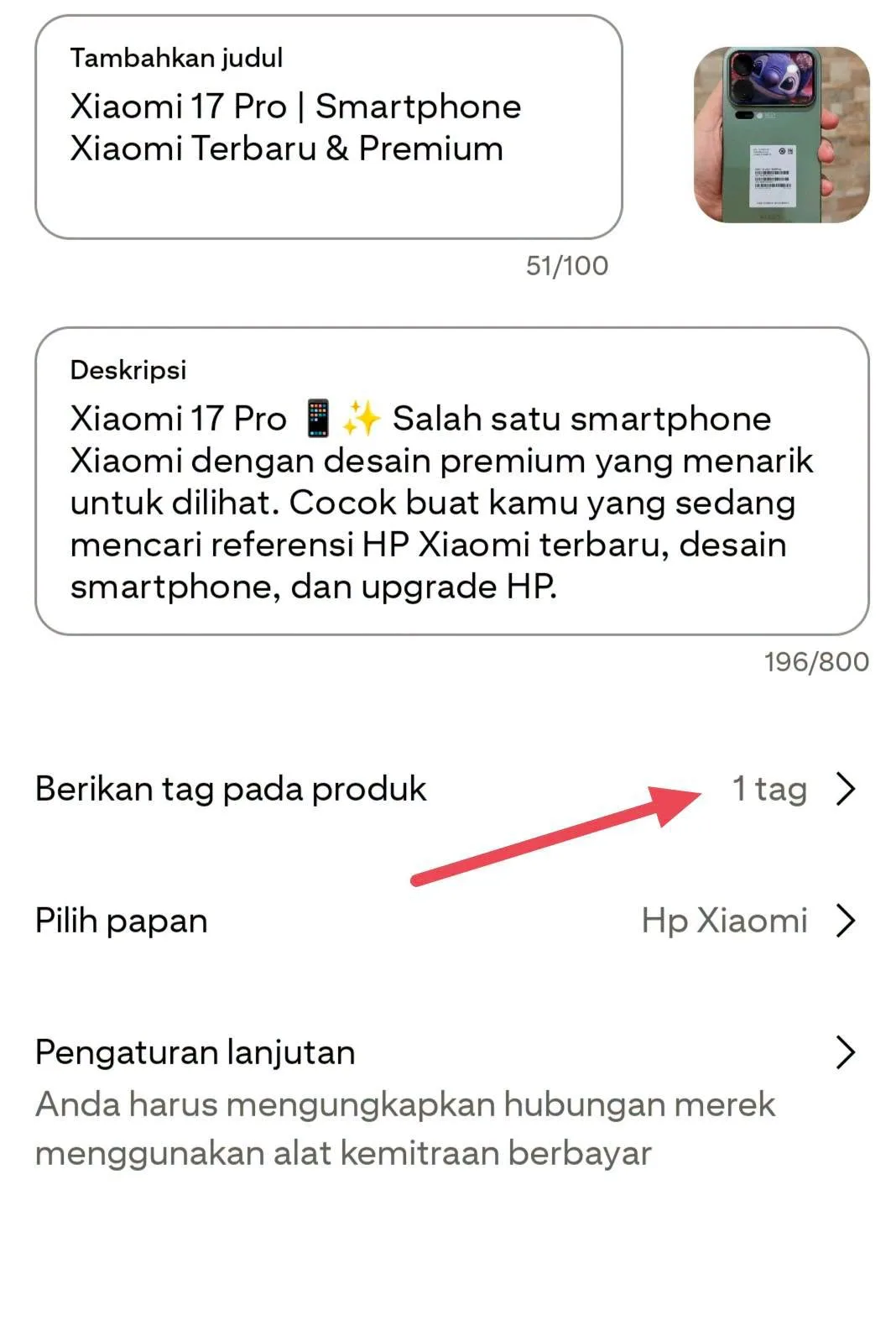
- Check that 1 tag now appears on the Pin. That text means the product is linked.
- Fill in the Title, Description, and Board. Match them to the product's keywords, like a title such as Xiaomi 17 Pro | Newest Premium Xiaomi Smartphone.
- Click Save once everything looks right.
Wrapping Up
When you are done, the Pin carries a clickable Shopee product instead of a plain link in the description. Keep the title and description close to what people actually search for, and repeat the same flow on your next upload.
Does this still work?
Nobody's checked yet
Sign in to tell everyone how it went.
Continue with GoogleBe the first — one tap saves the next person an hour.
It takes 3 reports in 30 days to set the status.
More shares you might like
 AIHow to Install Hallmark, the Anti-Slop Design Skill15h20 views
 ToolsHow to Claim GoPay Balance From IM3 Points1d27 views
 ToolsHow to Claim 10k–15k GoPay Coins From WeTV2d35 views
 AIHow to Polish AI Academic Writing With Academic Humanizer4d49 views
 ToolsHow to Start Amazon Affiliate Marketing From Indonesia5d55 views
 AIGoogle A2UI 1.0 Goes Stable With Native UI for Agents5d63 views



Comments
Join the conversation — sign in to comment.
No comments yet — start the conversation!