How to Create a List on Benable
Looking to make your Benable profile look polished? The trick is building lists that people immediately understand.
A specific theme, at least 15 recommendations, and a personal note on each one are what get your list marked Optimized.
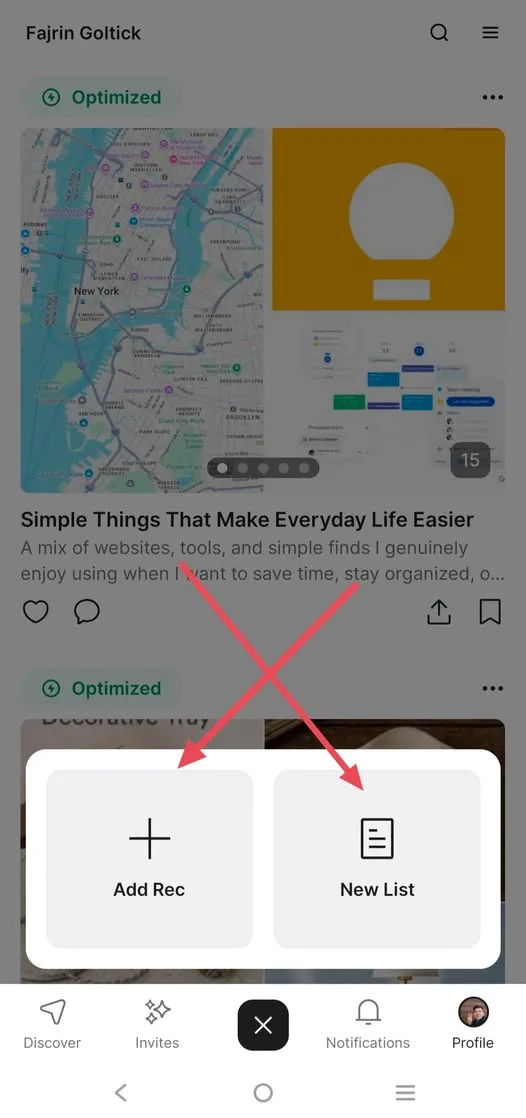
Tutorial
- Open Benable and go to your Profile.
- Tap the plus button at the bottom of the screen.
- Choose New List.
- Enter a specific list name. Try something like Desk Accessories That Make Working More Comfortable.
- Write a description that explains the list naturally. Make it clear what someone will find inside.
- Add at least 15 recommendations that all fit the same theme.
- On each recommendation, use Add Note to write a short reason for your pick.
- Pick a cover that matches the list theme.
- Save and check Tune-up until the status says Optimized.
Wrapping Up
Now your profile has a list that's specific, personal, and optimized. The formula is simple: a specific theme, 15 recommendations, personal notes, and a natural description. Use the same approach for your other lists and your profile will look a lot cleaner.
Does this still work?
Nobody's checked yet
Sign in to tell everyone how it went.
Continue with GoogleBe the first — one tap saves the next person an hour.
It takes 3 reports in 30 days to set the status.
More shares you might like
 AIHow to Get Free $200 Funds on Digital Ocean1y823 views
 AIHow to Claim 100M Free Tokens on CodeCraft API1w472 views
 AIRoku Launches a 24/7 AI-Generated TV Channel1mo96 views
 AIHow to Use Google Flow for AI Car Unboxing Videos1mo82 views
 ToolsHow to Get a 100k Gopay Voucher on Three3w79 views
 NewsFree Domain Available at nic.eu.org1mo100 views
Comments
Join the conversation — sign in to comment.
No comments yet — start the conversation!